To set up a local MCP server, you add a short JSON entry to your AI client's config file that tells it which command to run, then fully restart the client. The client starts the server on your machine and talks to it over standard input/output (stdio). In Claude Desktop that file is claude_desktop_config.json, in Cursor it is mcp.json, and in Claude Code you can add a server with one terminal command. The whole setup usually takes 10 to 15 minutes. When it fails, the cause is almost always one of three things: a command the app can't find, a relative path, or skipping a full restart.
If you are new to MCP itself, start with What Is AI MCP? Model Context Protocol, the "USB-C" of AI. This guide assumes you know what an MCP server is and want one running on your own machine.
When a Local MCP Server Makes Sense
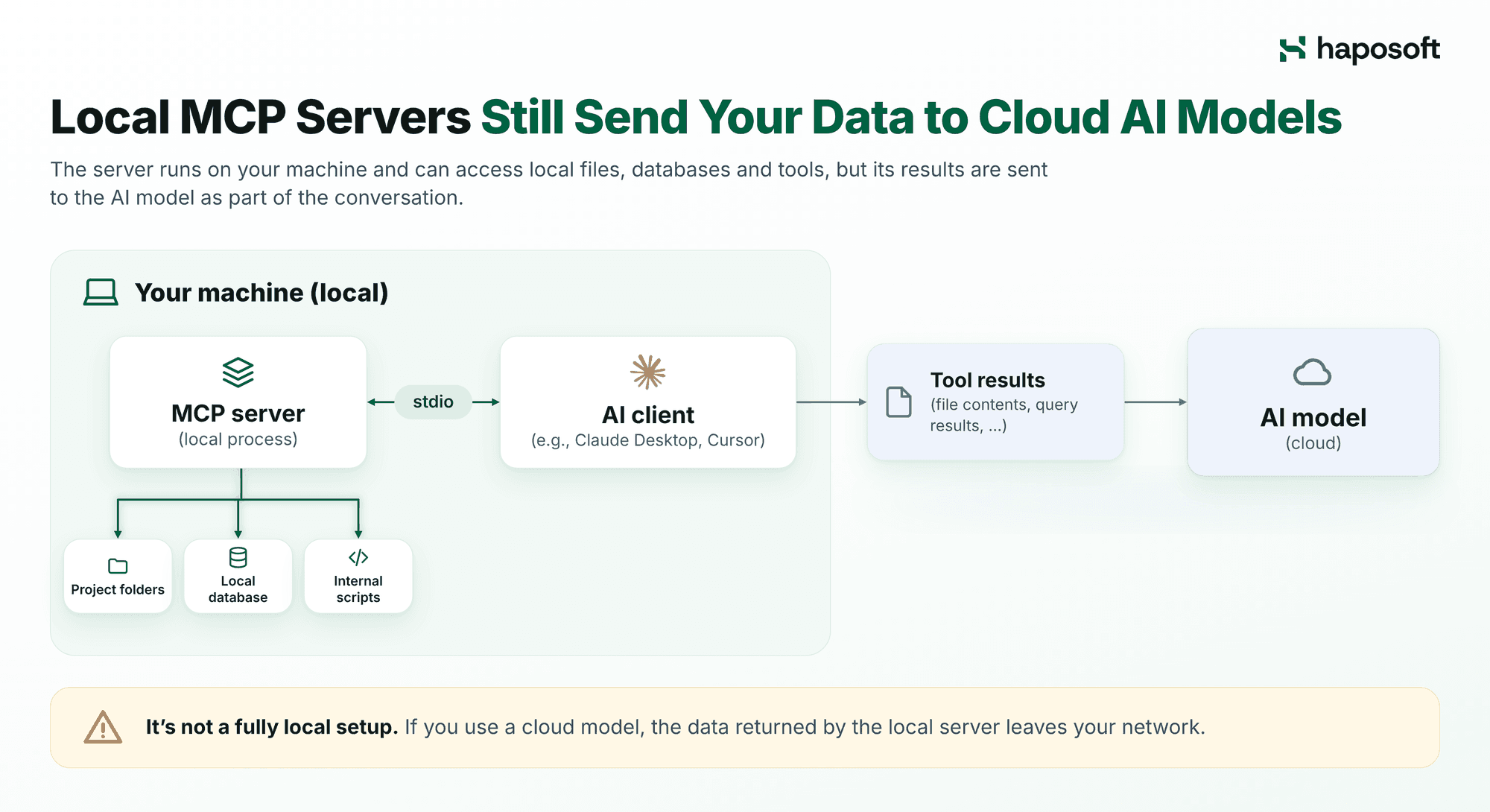
A local MCP server is a process on your computer, so it can reach things a cloud service can't: your project folders, a development database, internal scripts, or tools on a network only your laptop can see. It is a good fit when:
- the data or tool only exists on your machine or internal network
- you want to try an MCP server before rolling it out to a team
- you are building your own server and need a fast test loop
One point many guides get wrong: local does not mean the data stays local. The server runs on your machine, but whatever it returns (file contents, query results) is sent to the AI model as part of the conversation. If you use a cloud model, that data leaves your network. Treat a local MCP server as a controlled gateway, not an air gap.
A local server is the wrong choice when a whole team needs the same integration, or when the tool already offers a hosted (remote) MCP server. In those cases, a remote server or a ready-made connector is easier to maintain.
What You Need Before You Start
- An MCP client: Claude Desktop (macOS, Windows or Linux), Cursor, Claude Code, or another client that supports MCP.
- Node.js 18 or later for servers launched with npx, or Python 3.10+ with uv for servers launched with uvx.
- The absolute path to the folder, database file or script you want to expose.
- Any API keys or tokens the server needs, kept out of source control.
Run node --version or uv --version in a terminal to confirm the runtime is installed before you touch any config.
Step-by-Step: Set Up a Local MCP Server in Claude Desktop
Claude Desktop is the most common starting point, and the same JSON structure works in most other clients.
Shortcut: Desktop Extensions. Claude Desktop can also install local MCP servers with one click when they are packaged as Desktop Extensions (.mcpb files), from Settings > Extensions. If the server you need is in the extension directory, use that route: it handles dependencies and stores secrets in your OS keychain (Claude Help Center). The manual steps below are for servers that aren't packaged yet, or that you built yourself.
Step 1: Open the config file
In Claude Desktop, open Settings from the Claude menu, go to the Developer tab and click Edit Config. This creates the file if it doesn't exist yet. The file lives at:
- macOS: ~/Library/Application Support/Claude/claude_desktop_config.json
- Windows: %APPDATA%\Claude\claude_desktop_config.json
- Linux: ~/.config/Claude/claude_desktop_config.json
Step 2: Add the server
This example gives Claude access to one project folder through the official filesystem server:
{
  "mcpServers": {
    "project-files": {
      "command": "npx",
      "args": [
        "-y",
        "@modelcontextprotocol/server-filesystem",
        "/Users/yourname/Documents/ActiveProject"
      ]
    }
  }
}
What each field does:
- project-files is the name Claude shows for the server. Pick something you'll recognize.
- command is the program Claude Desktop starts. Here it is npx, which downloads and runs the package.
- args are passed to that command: -y skips the install prompt, then the package name, then the folders the server may access. Use absolute paths. Relative paths like ./project fail.
- env (optional, not shown) passes environment variables such as API keys to the server.
On Windows, write paths with double backslashes, for example "C:\\Users\\yourname\\Documents\\ActiveProject".
Step 3: Fully restart Claude Desktop
Closing the window isn't enough, because Claude Desktop only reads the config when it starts. Quit the app (Cmd+Q on macOS, or Quit from the system tray icon on Windows) and open it again.
Step 4: Check that the tools loaded
Click the + button ("Add files, connectors and more") at the bottom left of the chat box, open Connectors and look for your server's name. Select it to see its tools. Then test with a specific prompt, for example: "List the files in my ActiveProject folder and show me the first 10 lines of README.md."
By default, Claude asks for your approval before each tool call. If it answers without calling a tool, or says it can't access your files, the server didn't start. Go to the troubleshooting section below.
Setting Up the Same Server in Cursor and Claude Code
Cursor reads MCP servers from ~/.cursor/mcp.json for all your projects, or from .cursor/mcp.json inside a project when you want to share the setup with your team. If the same server name appears in both, the project file wins (Cursor docs). The format is the same mcpServers object shown above. Save the file and restart Cursor.
Claude Code can register a local server from the terminal, without editing JSON by hand:
claude mcp add project-files -- npx -y @modelcontextprotocol/server-filesystem /Users/yourname/Documents/ActiveProject
claude mcp list
The first command adds the server; the second confirms it is registered.
Real-World Local MCP Configuration Examples
These three setups cover most local use cases. Each one limits the server to a specific folder or file instead of your whole machine.
Example A: Several project folders
The filesystem server accepts more than one folder. List each one as a separate argument:
{
  "mcpServers": {
    "project-files": {
      "command": "npx",
      "args": [
        "-y",
        "@modelcontextprotocol/server-filesystem",
        "/Users/yourname/Documents/ActiveProject",
        "/Users/yourname/Documents/Specs"
      ]
    }
  }
}
Example B: A local SQLite database
The reference SQLite server is a Python package, so it runs through uvx:
{
  "mcpServers": {
    "local-sqlite": {
      "command": "uvx",
      "args": [
        "mcp-server-sqlite",
        "--db-path",
        "/Users/yourname/Documents/ActiveProject/local_dev.db"
      ]
    }
  }
}
The MCP project has moved this server to its archive of reference implementations. It's fine for local experiments, but for anything you'll rely on, choose an actively maintained server from the MCP servers repository. For PostgreSQL or MySQL, pick a maintained server for that database and pass the local connection string through args or env, following its README.
Example C: Your own Python server
If you wrote your own server, point command at the Python interpreter inside your project's virtual environment, not just python. Claude Desktop doesn't load your shell profile, so it won't find the interpreter your terminal uses.
{
  "mcpServers": {
    "internal-tool": {
      "command": "/Users/yourname/projects/my-mcp/.venv/bin/python",
      "args": [
        "/Users/yourname/projects/my-mcp/server.py"
      ],
      "env": {
        "INTERNAL_API_TOKEN": "your_scoped_token"
      }
    }
  }
}
Anyone who can read the config file can read the values in env. Use a dedicated, low-privilege token here, never your personal admin key.
Troubleshooting Common Local MCP Server Errors
Most local MCP failures are silent: the app opens, but the server never connects. Check the logs first. Claude Desktop writes MCP logs to ~/Library/Logs/Claude on macOS, %APPDATA%\Claude\logs on Windows and ~/.config/Claude/logs on Linux. mcp.log records connection errors, and mcp-server-.log holds each server's own output (MCP documentation).
"Command not found" or the server never starts
Claude Desktop doesn't inherit your terminal's PATH, so it may not find npx, uvx or python. Run which npx on macOS or Linux, or where npx on Windows, and put the full path in command. On Windows, if the logs show ${APPDATA} in a path, add your expanded APPDATA path to the server's env block.
The server starts but tool calls fail
The server is running, but something it depends on is wrong: a typo in a path, a missing file, or a database that isn't running. Copy the exact command and arguments from your config and run them in a terminal. If it fails there, fix it there, then restart the client.
"Permission denied" when reading files
On macOS, the app may need permission to read some folders. Go to System Settings > Privacy & Security > Files and Folders and allow Claude (or Cursor) to access them. Also check that your own user account can read the folder.
Environment variables aren't picked up
Variables from your shell or a .env file aren't passed to the server automatically. Define them in the server's env block, or have your script load the .env file from an absolute path.
Nothing loads after an edit
One missing comma breaks the whole file, and then no server loads at all. Open the config in VS Code or paste it into a JSON validator before you restart.
Security Checklist for Local MCP Servers
A local MCP server runs with your user account's permissions, so a badly configured server can do anything you can do on your machine. Keep it tight:
- Grant the smallest scope that works: one project folder or one database file, never your home directory or a whole drive.
- Start read-only where the server allows it, and keep your work under git before you allow writes.
- Keep secrets out of shared configs. Use scoped tokens in env, and don't commit files that contain them.
- Install third-party servers only after checking the source code, the publisher and recent activity, and pin a version instead of always pulling the latest.
- Read each approval prompt before you accept it. Claude asks before running a tool (unless you chose "Always allow" for it), and that prompt is your last check.
- Be careful with content from untrusted files and web pages: it can contain hidden instructions aimed at the model, known as prompt injection (OWASP Top 10 for LLM Applications).
- Don't point a server at data your company doesn't allow to be sent to an AI provider, since tool results go to the model.
FAQ
Can a local MCP server run without an internet connection?
The server itself can run offline. Claude Desktop and Cursor still need the internet to reach the AI model, so the full setup is only offline if you also use a local model with an MCP-capable client.
Does claude_desktop_config.json work with the Claude API?
No. Only Claude Desktop reads that file. The Claude API's MCP connector connects to remote MCP servers over HTTP, not to local stdio servers. To use a local server from your own application, add an MCP client to your code, for example with one of the official MCP SDKs.
Can I run several local MCP servers at the same time?
Yes. Add each one under its own name in mcpServers. Every server adds tool descriptions to the model's context, though, so enable only the ones you actually use.
Why does my Python MCP server fail to connect?
Usually the client can't find the right Python interpreter or your packages. Use the absolute path to the interpreter inside your virtual environment, and make sure the script runs cleanly from a terminal with that same interpreter.
What is the difference between a local and a remote MCP server?
A local server runs on your machine and talks to the client over stdio. A remote server runs on a web server and is reached over HTTP, usually with an OAuth sign-in. Local servers suit personal tools and testing; remote servers suit integrations a whole team shares.
Is it safe to let Claude modify my local files through MCP?
It carries real risk. Read-only access is a safe place to start. If you allow writes, keep your files under version control so you can undo mistakes, and review every approval prompt.
Need MCP Servers for Your Company's Systems?
A server for your own laptop takes minutes. Connecting AI to production databases, internal systems or legacy applications for a whole team is a different job: it needs remote deployment, sign-in, permission design and audit logs. Haposoft builds and runs MCP servers for its own products, including Hapo ERP, Hapo SMS and Hapo OKR, and does the same for client systems.
Contact Haposoft to talk through your use case, or start small with an AI First Win.